NUSMates User Guide
NUSMates allows NUS undergraduate students to record the contact details of their fellow NUS undergraduate students. With NUSMates, you can record NUS-specific contact information such as year, major, housing, and modules. NUSMates makes it seamless for you to record module information using an NUSMods link, helping you easily find friends who are taking the same modules - so you can form project groups, share notes, or know who to reach out to for help.
You will love NUSMates if:
- You’re an NUS undergraduate student who frequently uses NUSMods
- You’re socially active in NUS with a need to manage the contacts of your fellow NUS undergraduate students
- You often use NUSMods to plan, record, and share your course schedules
- You’re tech-savvy and familiar with installing jar files
- You can type fast and prefer typing commands over using a mouse
You can quickly look up all commands in the Command Summary, or check the Glossary if you’re unsure about any technical terms used.
Table of Contents
- Quick Start
- Command Summary
- Storing a contact
- Features
- How to get the NUSMods Link
- Detailed Installation Guide
- FAQ
- Troubleshooting
- Glossary
Quick Start
Having trouble installing the app or confused by any of the steps? Check out the Detailed Installation Guide for step-by-step help.
- Make sure you have Java 17 or later installed in your computer.
Mac users: Ensure you have the precise JDK version prescribed here.
-
Copy the file to the home folder you want to use as the home folder for NUSMates. NUSMates will later generate files in this folder, including save data.
-
Open a terminal and
cdinto the folder you put the .jar file in. - Use the command
java -jar "nusmates.jar"to run the application. A GUI similar to the below should appear in a few seconds. Note how the app contains some sample data.
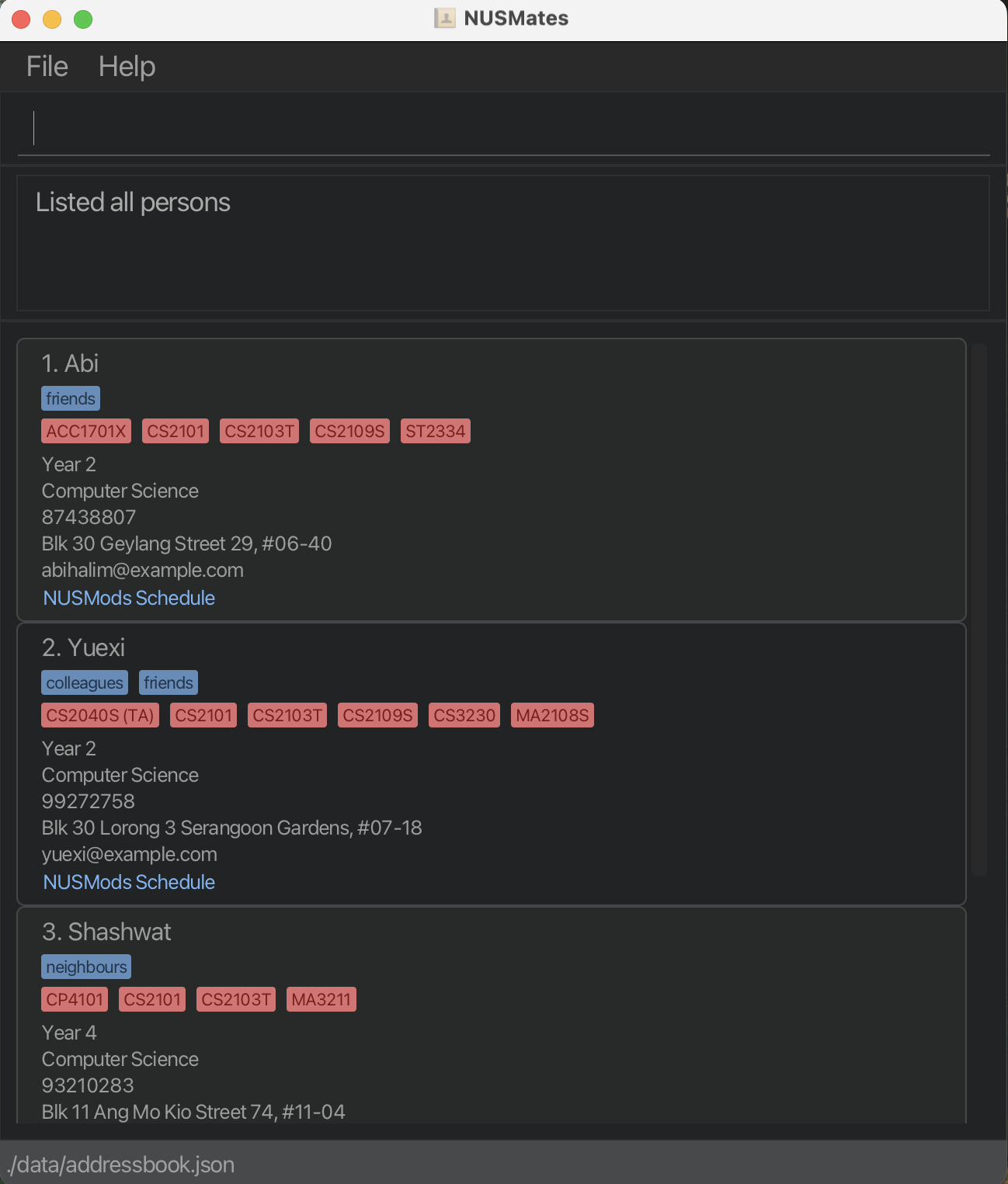
GUI which should appear after you launch the application - Type the command in the command box and press Enter to execute it.
- Refer to the Features below for details of each command.
Command Summary
For more detailed information regarding the command format and each command, refer to the Features section.
| Command | Format, Examples |
|---|---|
| Add | add n/NAME [p/PHONE_NUMBER] [e/EMAIL] [y/YEAR] [m/MAJOR] [h/HOUSING] [l/NUSMODS_LINK] [t/TAG] [t/MORE_TAGS]... e.g., add n/John Doe p/98765432 e/johnd@example.com y/2 m/Computer Science h/UTown Residence l/https://nusmods.com/timetable/sem-2/share?CS2103T=LEC:G12 t/kiasu |
| Edit | edit index [n/NAME] [p/PHONE_NUMBER] [e/EMAIL] [y/YEAR] [m/MAJOR] [h/HOUSING] [l/NUSMODS_LINK] [t/TAG]...e.g., edit 2 n/James Lee e/jameslee@example.com |
| Delete | delete indexe.g., delete 3 |
| Find | find KEYWORD [MORE_KEYWORDS]...e.g., find James Jake |
| FindMod | findMod KEYWORD [MORE_KEYWORDS]...e.g., findMod CS2103T CS2101 |
| List | list |
| Clear | clear |
| Exit | exit |
| Help | help |
Storing a contact
This section explains the meaning of each contact field you can include when storing a contact. These fields are also used as parameters in some commands.
| Field | Explanation | Constraints |
|---|---|---|
n/NAME | The name of the person. This is the only required field. | A non-empty string consisting of alphanumeric characters and spaces. |
p/PHONE_NUMBER | The person’s phone number. | 8-digit number, as all target users are expected to be Singapore residents. |
e/EMAIL | The person’s email address. | Any valid email address. |
y/YEAR | The person’s year of study at NUS. E.g., 1 = Year 1. | Any number between 1 to 6, which is the maximum candidature period. |
m/MAJOR | The person’s major at NUS. E.g., Computer Science. | Any string. |
h/HOUSING | Where the person stays, such as UTown Residence or off-campus. | Any string. |
l/NUSMODS_LINK | A link to the person’s NUSMods timetable containing the modules they are taking. You can click the link to copy it to your clipboard. | Any valid NUSMods timetable link. |
t/TAG | Tags to categorise the person, e.g., t/friend, t/project. One person can have multiple tags.💡 Tip: You can use tags to record CCAs, country of origin, etc. | Any alphanumeric string. |
Features
- Words in
UPPER_CASEare the parameters you must supply when entering the command.
e.g. inadd n/NAME,NAMEis a parameter which can be used asadd n/John Doe.- Items with
… after them can be used multiple times including zero times.
e.g.[t/TAG]...can be used as(i.e. 0 times),t/friend,t/friend t/familyetc.- Extraneous parameters for commands that do not take in parameters (such as
list,clear,exitandhelp) will be ignored. e.g. if the command specifieslist 123, it will be interpreted aslist.
- Parameters can be in any order.
e.g. if the command specifiesn/NAME p/PHONE_NUMBER,p/PHONE_NUMBER n/NAMEis also acceptable.- ⚠️ If you are using a PDF version of this document, be careful when copying and pasting commands that span multiple lines as space characters surrounding line-breaks may be omitted when copied over to the application.
Adding a person: add
You can add a person to NUSMates and record their contact information with the add command.
Format: add n/NAME [p/PHONE_NUMBER] [e/EMAIL] [y/YEAR] [m/MAJOR] [h/HOUSING] [l/NUSMODS_LINK] [t/TAG] [t/MORE_TAGS]...
- All parameters except for
NAMEare optional.
e.g. You can add a contact with only name, year, and major usingadd n/John Doe y/2 m/Computer Science - A person can have any number of tags, including none.
NUSMODS_LINKrefers to the student’s NUSMods link course schedule original link.
Examples:
add n/John Doe p/98765432 e/johnd@example.com y/2 m/Computer Science h/UTown Residence l/https://nusmods.com/timetable/sem-2/share?CS2103T=LEC:G12add n/Betsy Crowe t/friend e/betsycrowe@example.com y/1 m/Electrical Engineering h/PGPR p/1234567 l/https://nusmods.com/timetable/sem-2/share?CS2040=TUT:12,LAB:06,LEC:1
The application does not allow for two contacts to have the same name! However, other fields may have duplicates.
For details on the NUSMods link parameter and how to get it, read here
Editing a person : edit
You can edit the details of a person whose contact information you already saved with the edit command.
Format: edit index [n/NAME] [p/PHONE_NUMBER] [e/EMAIL] [y/YEAR] [m/MAJOR] [h/HOUSING] [l/NUSMODS_LINK] [t/TAG]...
Indexrefers to the index number shown in the displayed person list. The index must be a positive integer 1, 2, 3, …- At least one of the parameters must be provided.
- Existing values will be updated to the input values.
- You can remove all the person’s tags by typing
t/without specifying any tags after it. - When editing tags, the existing tags of the person will be removed i.e adding of tags is not cumulative.
You cannot combine tag clearing
t/and tag additiont/TAGin the same command. Doing so will result in an error. For example, the commandedit 1 t/ t/friendsis invalid — you must either clear all tagst/or replace them with new tagst/friends t/groupmate, but not both.
Examples:
edit 1 p/91234567 e/johndoe@example.comEdits the phone number and email address of the 1st person to be91234567andjohndoe@example.comrespectively.edit 2 n/Betsy Crower t/Edits the name of the 2nd person to beBetsy Crowerand clears all existing tags.
Deleting a person : delete
You can delete a person from NUSMates with the delete command.
Format: delete index
- Deletes the person at the specified
index. - The index refers to the index number shown in the displayed person list.
- The index must be a positive integer 1, 2, 3, …
Examples:
listfollowed bydelete 2deletes the 2nd person in the address book.find Betsyfollowed bydelete 1deletes the 1st person in the results of thefindcommand.
Locating persons by name: find
You can find a person in your contacts whose name matches a keyword with the find command.
Format: find KEYWORD [MORE_KEYWORDS]...
- The search is case-insensitive. e.g
hanswill matchHans - You can use multiple keywords separated by spaces, e.g.
Hans Bo - The order of the keywords does not matter. e.g.
Hans Bowill matchBo Hans - Only the name is searched.
- Only full words will be matched e.g.
Hanwill not matchHans - Persons matching at least one keyword will be returned (i.e.
ORsearch). e.g.Hans Bowill returnHans Gruber,Bo Yang
Examples:
find HuazhireturnsHuazhifind Abi YuexireturnsAbi,Yuexi
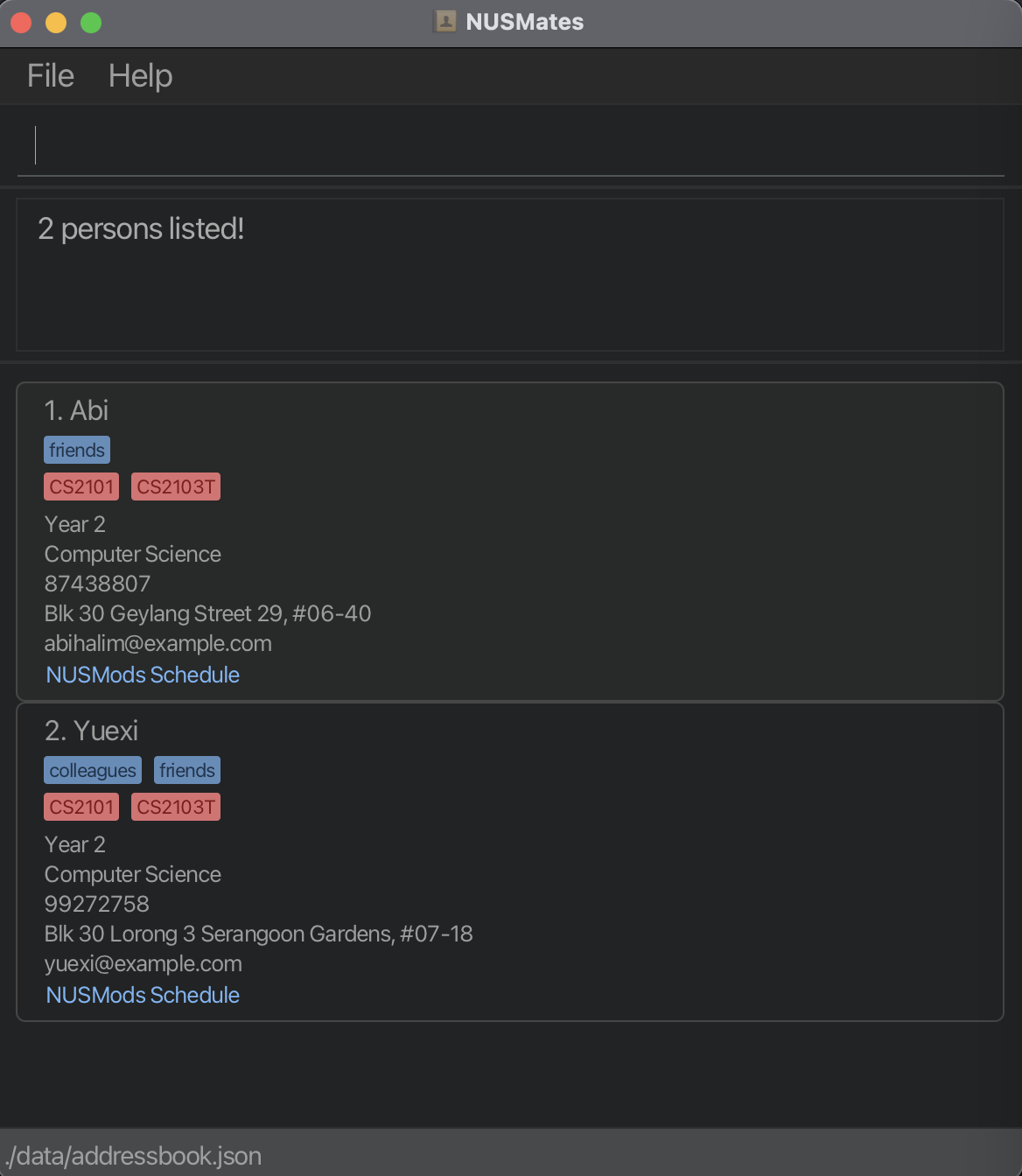 |
|---|
Result for find Abi Yuexi |
Locating persons by module: findMod
You can find a person taking certain modules with the findMod command.
Format: findMod KEYWORD [MOREKEYWORDS]...
- The search is case-insensitive. e.g
cs2030will matchCS2030 - The order of the keywords does not matter. e.g.
CS2030 CS2103Twill matchCS2103T CS2030 - Only the module is searched.
- Only full words will be matched e.g.
CS2103will not matchCS2103T - Persons matching at least one of the modules searched will be returned (i.e.
ORsearch). - Note that NUSMates can distinguish between modules added as student or as a TA on NUSMods. Modules with the TA option enabled are appended with a
(TA), soCS2030would becomeCS2030(TA)instead.
Examples:
findMod CS2109SreturnsAbi, Yuexi
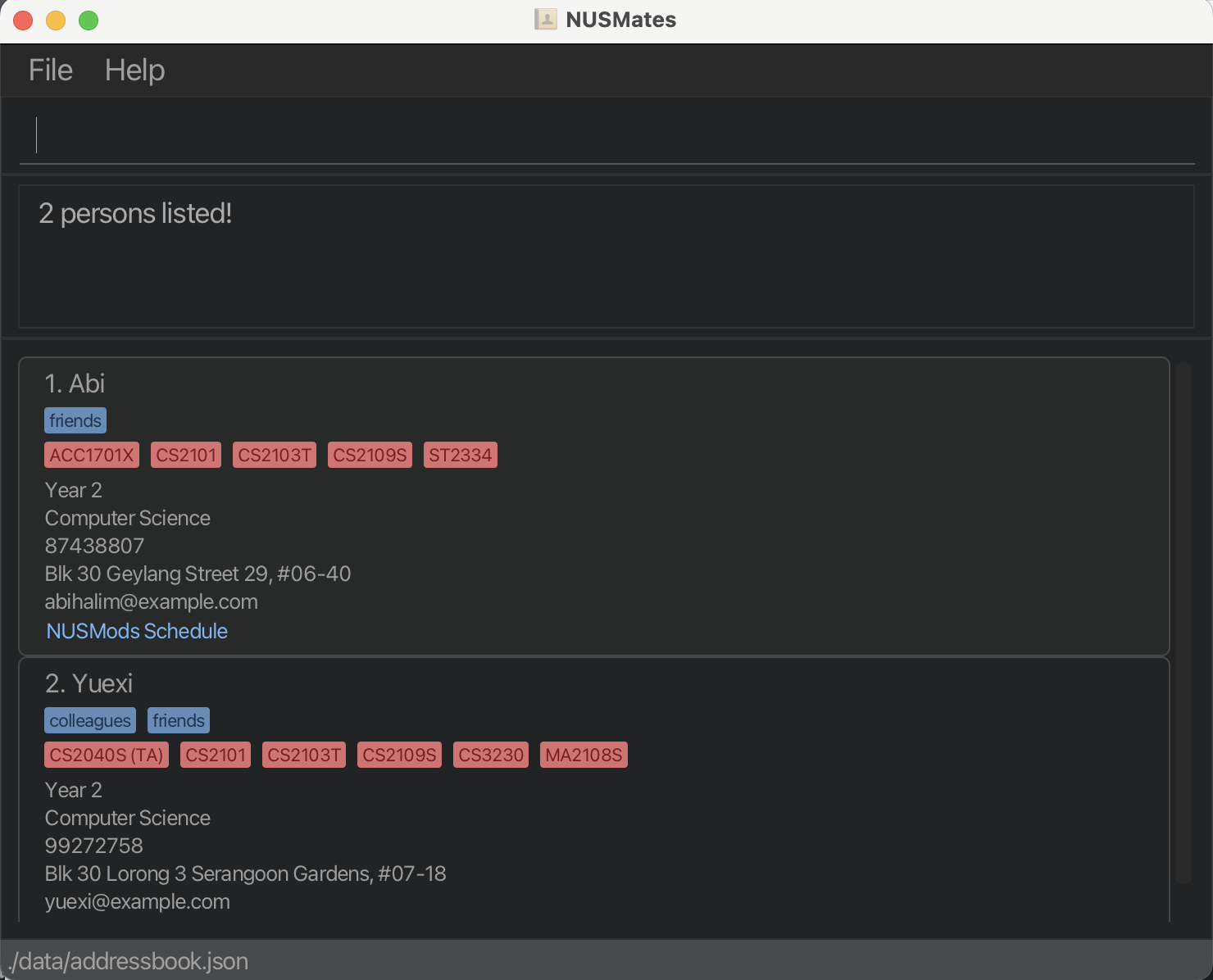 |
|---|
Result for findMod CS2109S |
Listing all persons : list
After finding specific persons, you can list all your contacts again with the list command.
Format: list
Clearing all entries : clear
You can quickly delete all your contacts with the clear command.
Format: clear
There is no way to undo clearing all your contacts, so be careful!
Exiting the program : exit
You can exit the NUSMates app by using the exit command.
Format: exit
Viewing help : help
You can return to this user guide for help on using NUSMates by using the help command.
 |
|---|
Pop-up window displayed when you enter the help command |
Format: help
Saving and editing the data file
NUSMates data is saved in the hard disk automatically after any command that changes the data, so you don’t need to save manually.
NUSMates data is saved automatically as a JSON file [JAR file location]/data/addressbook.json. If you are an advanced user, you are welcome to update data directly by editing that file.
If your changes to the data file makes its format invalid, NUSMates will discard all data and start with an empty data file at the next run. Hence, it is recommended to take a backup of the data file before editing it.
Furthermore, certain edits can cause NUSMates to behave in unexpected ways (e.g., if a value entered is outside of the acceptable range). Therefore, edit the data file only if you are confident that you can update it correctly.
How to get the NUSMods Link
ℹ️ Note: What is NUSMods?
NUSMods is a website used by NUS students to view and plan their module timetables. A typical NUSMods timetable might look something like this:
You can share your NUSMods timetable with others using an NUSMods link. NUSMates uses this NUSMods link to record the module information of a contact.
Step 1: Share/Sync
Click on the Share/Sync button on the top right.
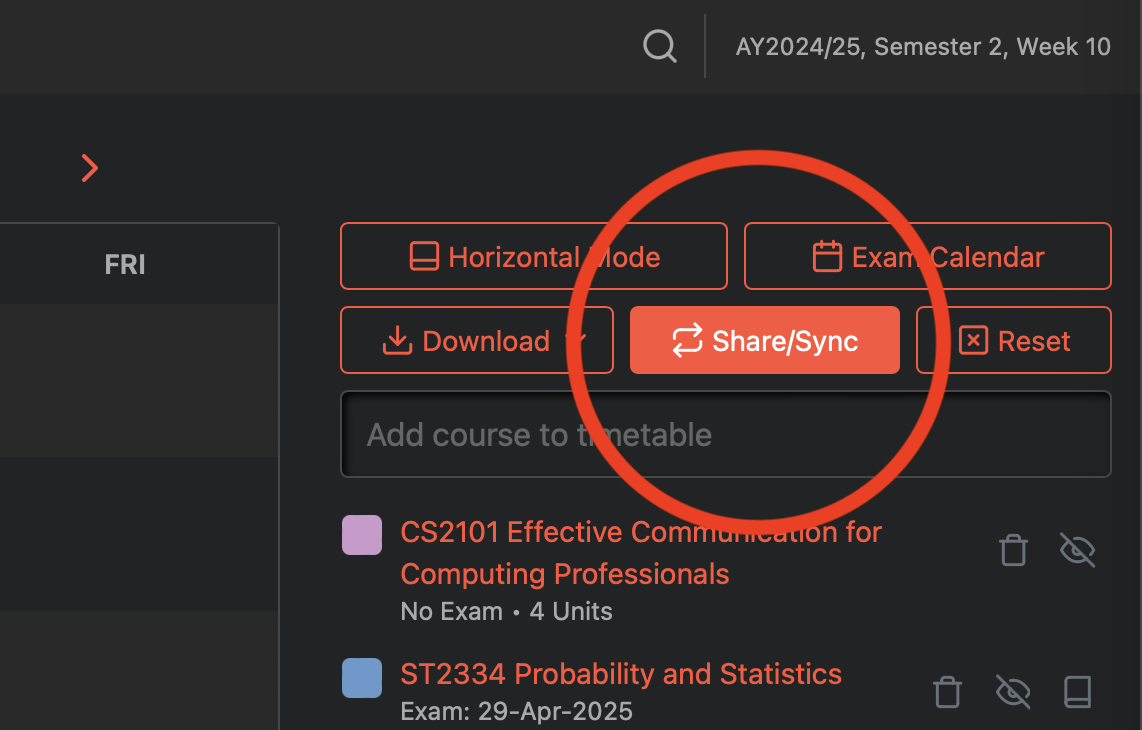 |
|---|
Share/Sync button on the NUSMods website |
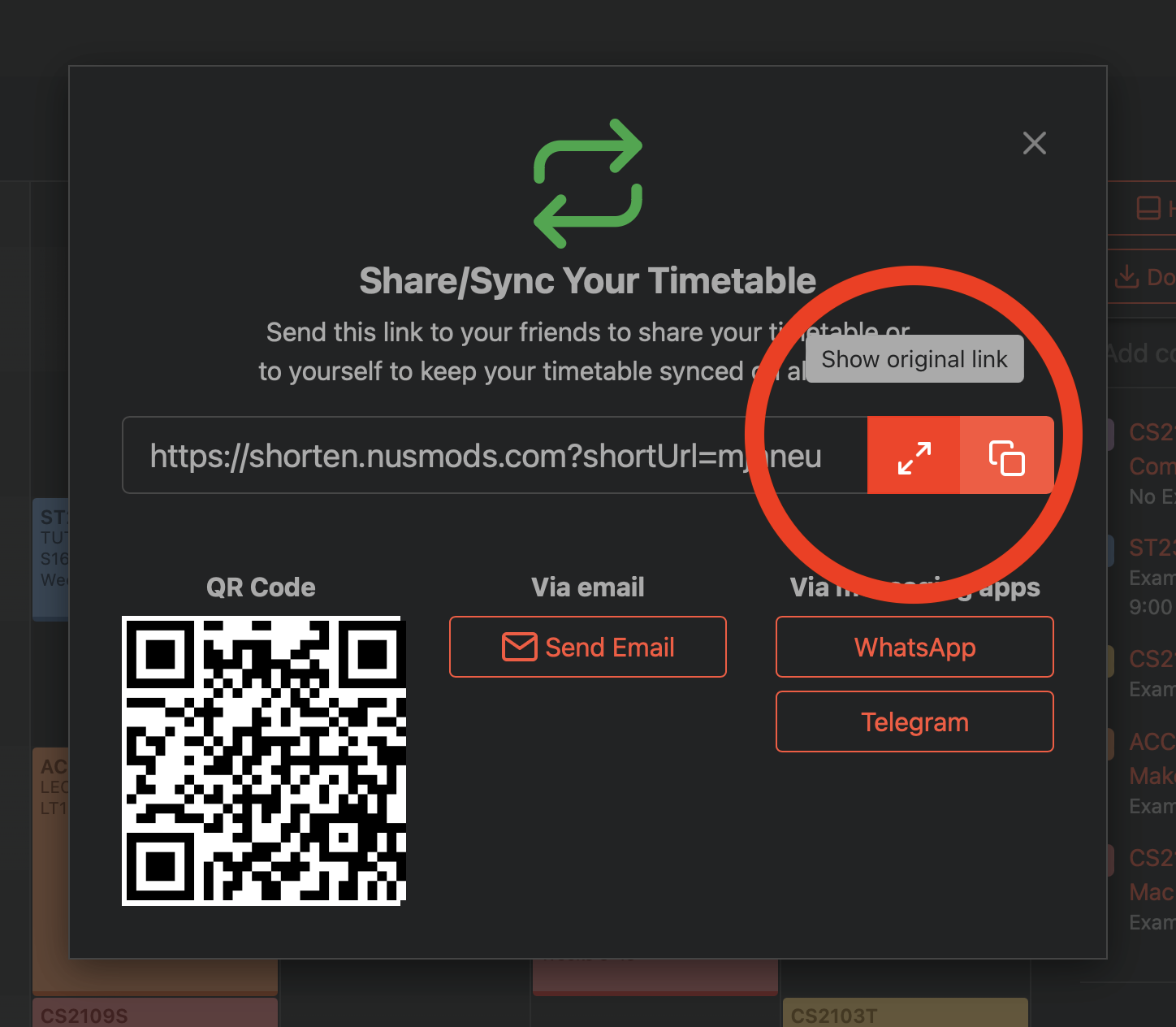
Step 2: Show original link
Click on the Show original link button to convert the shortened NUSMods link to the original one.
 |
|---|
Show original link button on the NUSMods website |
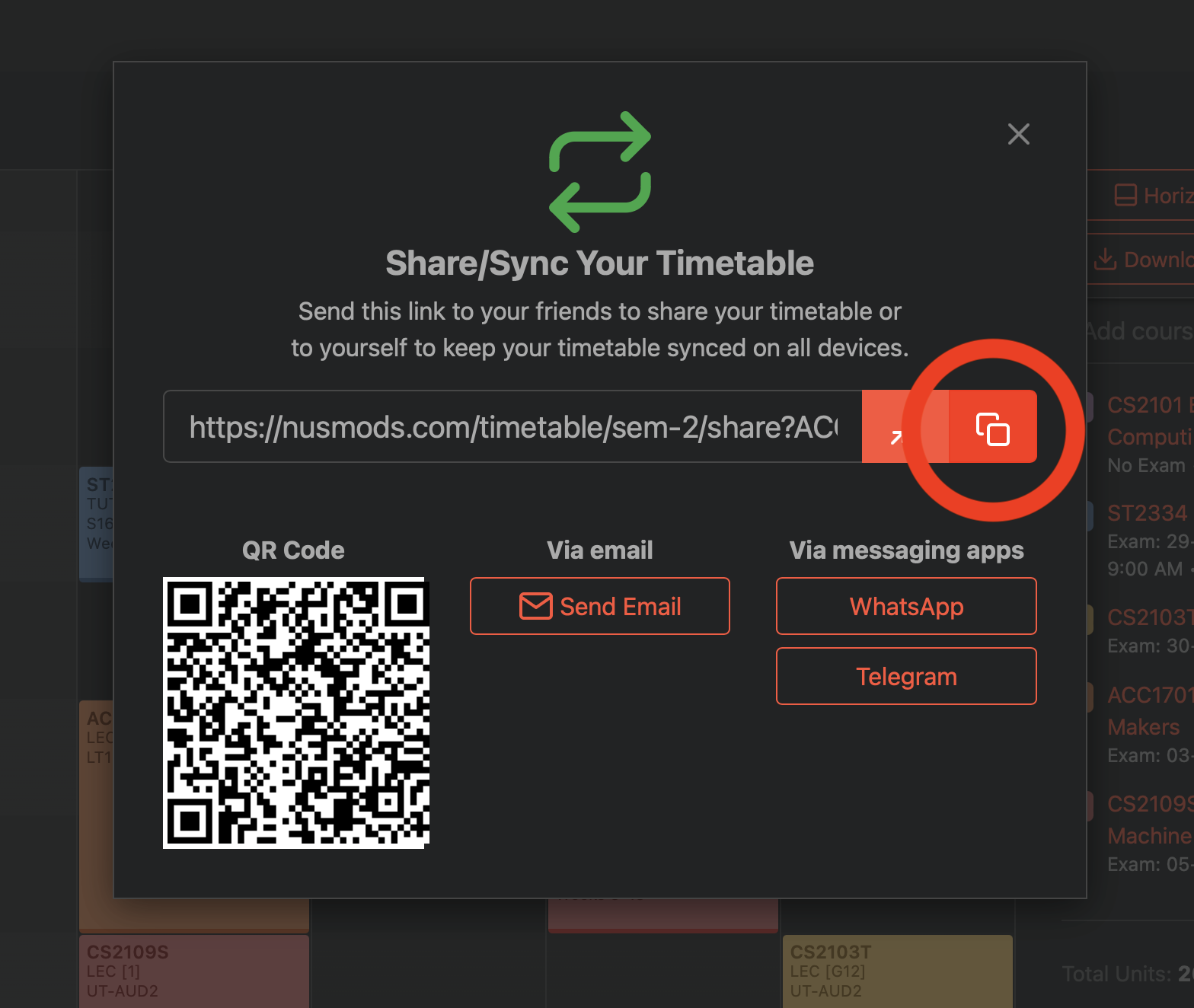
Step 3. Copy
Copy the link, and you’re done!
 |
|---|
Copy link button on the NUSMods website |
You can now use this link as the l/NUSMODS_LINK parameter in the add or edit commands.
Detailed Installation Guide
This section helps you install and run NUSMates, even if you have never used a terminal or heard of Java before. Just follow the steps one by one!
Step 1: Check if you already have Java
NUSMates runs using Java, which is a common tool installed on many computers.
To check:
- Open your terminal:
- On Windows: Press the
Windowskey, typecmd, and press Enter. - On macOS: Press
Cmd + Space, typeTerminal, and hit Enter.
- On Windows: Press the
- Type this into the terminal and press Enter:
java -version - If you see a version number that starts with
17or higher, such as in the image below, you’re good to go. Move to step 2.
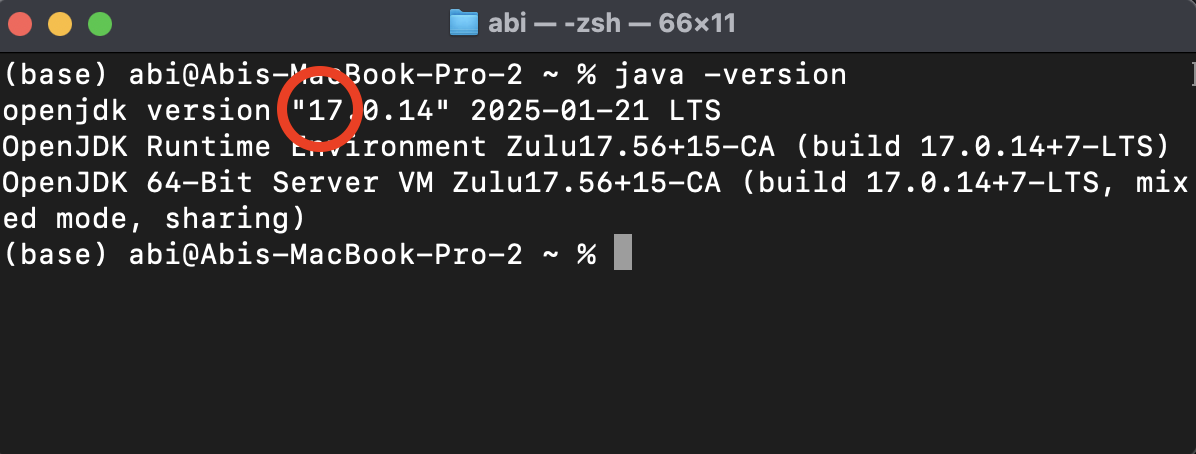
Result of entering the java -versioncommand in terminal, and where to see your Java version -
If you see an error, or a number less than 17, you’ll need to install Java. Follow the guide for your operating system below:
Step 2: Download the NUSMates .jar file
-
Go to the latest release of NUSMates on the NUSMates releases page
-
Find the most recent version, and download the file named
nusmates.jar
Step 3: Choose a home folder
- Create a new folder anywhere you like, e.g., on your
Desktopor inDocuments. - Give it a name like
NUSMates. - Move the downloaded
.jarfile into this folder.
Step 4: Open the terminal in that folder
You’ll now “go into” the folder using the terminal.
On Windows:
- Open File Explorer and navigate to your NUSMates folder.
- In the address bar at the top, type
cmdand press Enter. - A terminal window will appear, already inside the folder.
On macOS:
- Open the Terminal app.
- Type
cd(with a space), then drag and drop your NUSMates folder into the terminal. - Press Enter.
Step 5: Run NUSMates
Now that you’re in the correct folder, run this command:
java -jar "nusmates.jar"
If everything works, a window will pop up showing NUSMates with some sample contacts, such as below.
|
|---|
| GUI which should appear after you launch the application |
If you see an error:
- Double-check that you’re in the correct folder and that the file name is exactly
nusmates.jar.- Make sure Java was installed properly.
- Visit the Troubleshooting section for more help.
FAQ
Q: How do I transfer my data to another Computer?
A: Install the app in the other computer and overwrite the empty data file it creates with the file that contains the data of your previous AddressBook home folder.
Q: Can I use NUSMates on my mobile device?
A: NUSMates is a command-line application that may not be optimized for mobile devices. It’s best used on desktop environments where a terminal or command prompt is available.
Q: How do I get the NUSMods link?
A: You may refer to the detailed step-by-step guide here.
Q: Can I add two contacts with the same name?
A: No, NUSMates does not allow duplicate names when adding contacts. Each contact must have a unique name in the system. To add multiple people with the same name, distinguish them in some way such as adding a descriptor (e.g., John Doe (Work)) or a number (Amy1, Amy2).
Q: Can I edit a contact’s module information manually?
A: No, a contact’s module information is automatically retrieved from the NUSMods link they provided. If their schedule changes, simply ask them to send you the updated link, and you can update their module information using the edit command.
Q: If my contact changes their schedule on NUSMods, will their modules be automatically updated in NUSMates?
A: No, changes in NUSMods will not automatically be reflected in NUSMates. You can ask your contact to send you the updated link, and you can update their module information using the edit command.
Q: How are hidden modules in the timetable treated?
A: Our link processing treats hidden modules as usual, and does add it to the module list of the contact.
Troubleshooting
- When using multiple screens, if you move the application to a secondary screen, and later switch to using only the primary screen, the GUI will open off-screen. The remedy is to delete the
preferences.jsonfile created by the application before running the application again. - If you minimize the Help Window and then run the
helpcommand (or use theHelpmenu, or the keyboard shortcutF1) again, the original Help Window will remain minimized, and no new Help Window will appear. The remedy is to manually restore the minimized Help Window.
Glossary
Here are the definitions of some uncommon or domain-specific terms used frequently in this user guide.
Java
A programming language and platform used to run NUSMates. You need Java 17 or above installed on your computer to run the .jar file.
.jar file
A Java Archive file that packages a Java application. You run it using the java -jar command.
Terminal
A text-based interface that allows users to interact with the computer using commands. On Windows, this is called the Command Prompt; on macOS, it’s called Terminal.
cd command
Short for “change directory.” This command is used in the terminal to navigate to the folder where your .jar file is located.
Home folder
The folder where you place the .jar file. NUSMates stores its data in this folder.
GUI
Short for Graphical User Interface. It’s the visual interface of the app with windows and buttons.
Parameter
A specific piece of information the user provides when entering a command. Parameters are usually written in UPPER_CASE in the command format.
Index
A number that represents the position of a contact in the list shown in the app. For example, the first contact has index 1.
Tag
A label you can add to a contact to help categorise them, such as storing CCA information e.g. t/NUS Amplified or t/NUS Computing Club.
JSON file
A type of file used to store data in a structured format. NUSMates uses a JSON file to save your contact data.
NUSMods Link
NUSMods is a website used by NUS students to view and plan their module timetables. You can share your NUSMods timetable using an NUSMods link. For more information, refer to how to get the NUSMods link.
Module
A subject or course that NUS students take as part of their degree programme. Each module has a unique code (e.g., CS2103T) and typically includes lectures, tutorials, and/or labs.
Major
The primary field of study that a student is specialising in at NUS, such as Computer Science or Electrical Engineering.
Year
Refers to the student’s current year of study at NUS, e.g., Year 1 (first-year student), Year 2, and so on.
Housing
Refers to the student’s housing option at NUS or where they live in general such as UTown Residence, Lighthouse, or their address off campus.